
Duo Access Gateway - FAQ
Last updated:
Duo Access Gateway reached Last Day of Support on October 26, 2023 for Duo Essentials, Advantage, and Premier customers. As of that date, Duo Support may only assist with the migration of existing Duo Access Gateway applications to Duo Single Sign-On. Please see the Guide to Duo Access Gateway end of life for more details.
Learn more about Duo Single Sign-On, our cloud-hosted identity provider featuring Duo Central and the Duo Universal Prompt.
Duo Federal customers may still use Duo Access Gateway for SAML applications after October 26, 2023.
Will Duo Access Gateway support Universal Prompt?
Duo Access Gateway Universal Prompt support is available to Duo Federal customers only starting with version 2.0.0. The first-time deployment instructions for DAG on Windows or Linux include steps for Universal Prompt activation. Please see the Duo Knowledge Base article How do I enable Duo Universal Prompt for a Duo Access Gateway SAML application or the Duo Access Gateway Launcher? to learn how to enable frameless authentication on existing DAG servers and to activate Universal Prompt for DAG SAML applications already in use.
Duo Access Gateway reached the end of support for Duo commercial plan customers (Essentials, Advantage, and Premier) in October 2023. Commercial customers migrated to Duo Single Sign-On, which does include support for the Duo Universal Prompt.
Can I run the Duo Access Gateway on Linux?
Yes, you can run the Duo Access Gateway on Linux using Docker and our published Duo Access Gateway image. See the full instructions for deploying Duo Access Gateway on Linux.
Can I update the IP addresses allowed to access the Duo Access Gateway for Windows admin console after installation?
Windows
Yes, you can add or remove allowed IP addresses at any time, even if you didn't specify additional IP addresses during the Duo Access Gateway install.
-
From the Duo Access Gateway server console, open C:\inetpub\wwwroot\dag\www\web.config in a text editor.
-
Scroll to the bottom of the file and locate the
<additionalLocalIps>configuration section directly after</rules>:<additionalLocalIps> <add IP="1.2.3.4" /> </additionalLocalIps>If the
<additionalLocalIps>section does not exist, you can add it now. Be sure to copy the entire example above and paste it immediately after</rules>and before</DuoIpSecurity>near the end of the web.config file. -
Replace 1.2.3.4 (or your existing configured IP address) with the IP address of the new device permitted DAG admin console access.
If you would like to permit access from more than one remote IP, insert additional
<add IP="x.x.x.x" />lines into the web.config file:<additionalLocalIps> <add IP="1.2.3.4" /> <add IP="5.6.7.8" /> </additionalLocalIps> -
Save the changes to web.config. You can now access the Duo Access Gateway admin console from the specified additional IP address or addresses.
Linux
A configuration setting for AdditionalLocalIPs is not available for the Linux Duo Access Gateway (DAG) because its admin console is accessible on port 8443. You can use network-level controls to regulate access to port 8443 as needed.
This optional configuration is only necessary for the Windows Duo Access Gateway because it only allows the local Windows server to access the DAG admin console by default.
Can I back up my Duo Access Gateway settings?
Please refer to the "Backup and Restore" instructions for Duo Access Gateway for Windows or Linux to back up your Duo Access Gateway settings. These files can then be restored to their original locations when necessary.
How do I configure high-availability for Duo Access Gateway?
Please refer to the "High Availability" instructions for Duo Access Gateway for Windows or Linux to create a standby Duo Access Gateway server. You may also put two identically configured Duo Access Gateway servers behind a load balancer.
How do I enable Duo Access Gateway debug logging and view the log?
Duo Access Gateway records the following events:
- Administrator console logons
- Primary user authentication success and failure
- Secondary user authentication success
- Errors
The default logging level does not include additional troubleshooting information.
Windows
To enable DAG debug logging:
-
Log into the Duo Access Gateway admin console and navigate to Settings.
-
Scroll down to the "General" section and check the box next to Debugging.
-
Click Save Settings.
When enabled the Duo Access Gateway writes additional debug output to the existing log.
The log file is found at C:\inetpub\wwwroot\dag\log\dag.log.
Linux
To view the log output updating in real time, log into the Duo Access Gateway server and run the following command, replacing the example Duo Access Gateway YML name with your current file's actual name:
docker compose -p access-gateway -f access-gateway-x.x.x.yml logs -fTo export all logs to a log file, enter:
docker compose -p access-gateway -f access-gateway-x.x.x.yml logs -f > dag.logTo specify how many lines to export, see the following example, which will export the last 5000 lines:
docker compose -p access-gateway -f access-gateway-x.x.x.yml logs --tail=5000 > dag.logYou can use the command below to find the location of your YML file on your system:
sudo find / -name "access-gateway-*.yml"How do I upgrade Duo Access Gateway to a newer version?
Refer to the Duo Access Gateway upgrade instructions for Windows or Linux installations.
How do I upgrade the PHP installation used by Duo Access Gateway for Windows 1.3.0 and higher?
When installing or upgrading Duo Access Gateway to a newer version, the DAG installer handles installing the required PHP for that DAG version. There may be occasions where you need to update PHP separately from upgrading DAG, such as if a security vulnerability is discovered in the PHP version you have installed.
You can update the PHP install used by Duo Access Gateway with our bundled DAG PHP updater utility. This utility registers the new PHP version in IIS on the DAG virtual site and removes mappings for the prior version from IIS.
- Duo Access Gateway 3.0.0 and later supports PHP 8.3.31 Non-Thread Safe only.
- Duo Access Gateway 1.5.13 to 2.1.1 supports PHP 8.1 versions only.
- Duo Access Gateway 1.5.11 - 1.5.12 supports PHP 7.4.12 and later 7.4 releases.
- Duo Access Gateway 1.5.7 - 1.5.10 support PHP 7.3 versions only.
- Duo Access Gateway 1.5.3 - 1.5.6 support PHP 7.1 versions only.
Do not update your PHP install beyond the supported major version that corresponds with your Duo Access Gateway version (i.e. do not upgrade to PHP 8.x if running DAG 1.5.11).
To update PHP on your DAG server:
-
Download the correct PHP x64 Non Thread Safe release you require to your DAG server.
-
Launch an elevated command prompt (right-click "Command Prompt" and select the "Run as administrator" option) and change to the directory to C:\inetpub\wwwroot\dag\bin.
-
Run the PhpUpgrade command file with the following syntax:
PhpUpgrade.cmd [phpSource]Where
[phpSource]is either the path to an x64 non thread safe (nts) PHP zip file, or the path to a directory containing the extracted contents of the PHP zip file.Example usage (an update to PHP 7.3.8):
- Update to PHP 7.3.8 using a zip file, extracting the PHP files to the default folder location C:\Program Files\Duo_Access_Gateway_PHP\7.3.8:
PhpUpgrade.cmd php-7.3.8-nts-Win32-VC14-x64.zip- Update to PHP 7.3.8 using the PHP zip file contents already extracted to C:\PHP\7.3.8 as the source:
PhpUpgrade.cmd C:\PHP\7.3.8 -
After the Duo Access Gateway PHP updater completes successfully you should perform an iisreset to cycle web services on your server.
-
Delete the older PHP version folder from your server to complete the update.
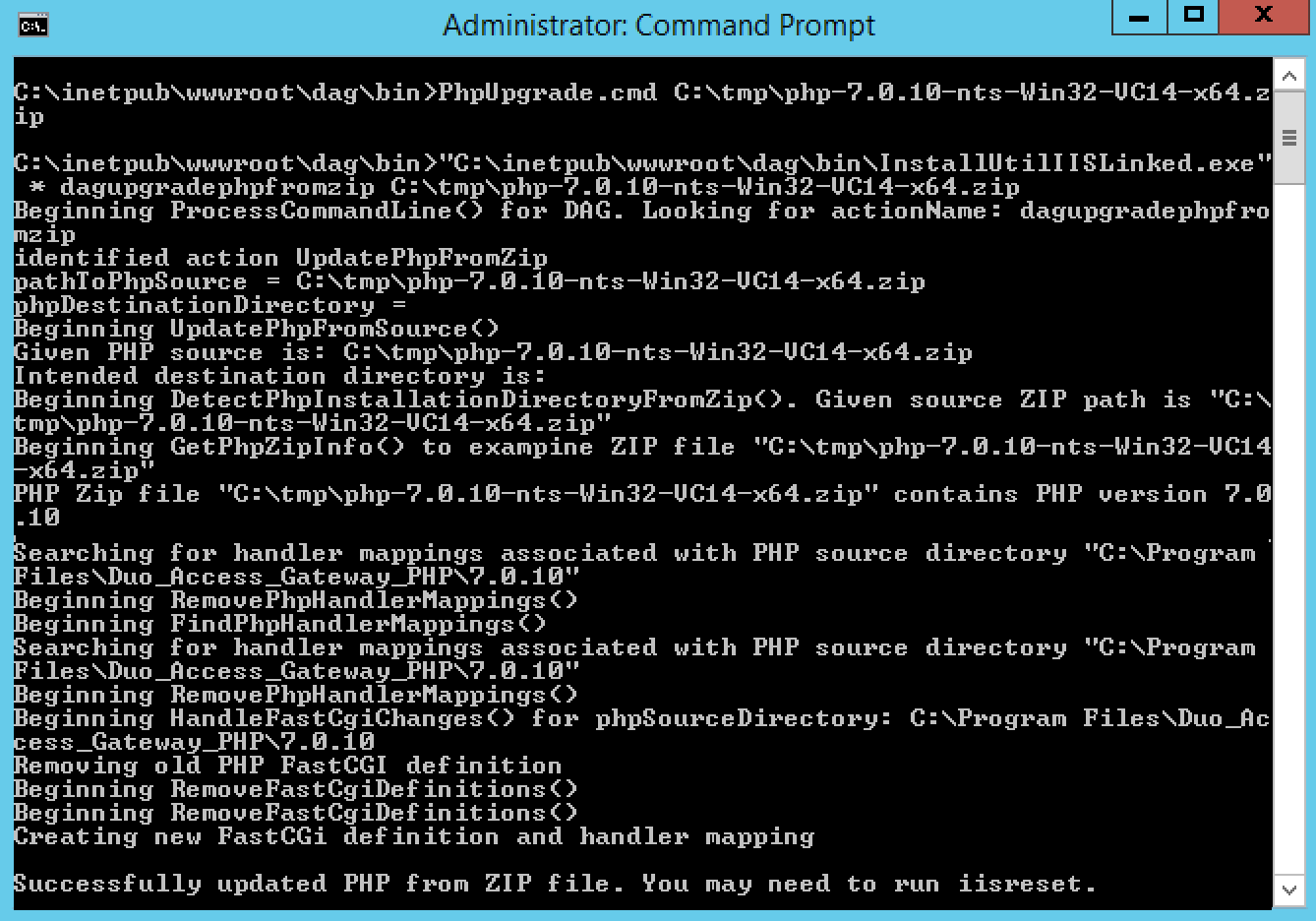
The DAG PHP update exits with an error message if it fails to extract the PHP zip file, if it is not run with elevated Administrator rights, or if any prerequisites are missing for the new PHP version.
Does Duo Access Gateway support FIPS 140-3?
Yes, in release 3.0.0 and later.
How do I troubleshoot FIPS mode issues?
Check the DAG log for the following issues:
Signature verification failures. SAML responses fail validation after enabling FIPS mode. This usually indicates a service provider sending RSA-SHA1 signed messages. Contact the partner to enable RSA-SHA256 signatures, or temporarily disable FIPS mode until the service provider updates to support SHA-256.
Fingerprint mismatch errors. "Invalid fingerprint of certificate" errors appear due to fingerprint length mismatch or algorithm mismatch. Check the error message for both SHA-1 and SHA-256 fingerprints, update metadata to use the correct fingerprint, or switch to full certificates.
SHA-1 fingerprint detected warning. A warning in logs about SHA-1 fingerprint in FIPS mode indicates that metadata still uses SHA-1 fingerprints. Log in to the Duo Access Gateway admin console, navigate to Authentication Source, and click Save to generate SHA-256 certificate fingerprints.
Is Office 2013 or 2016 rich client login or the Office 365 mobile app supported?
Office 2013 and 2016 desktop applications (including Outlook and Skype for Business) by default can no longer connect to Office 365 after federation with Duo Access Gateway. Office 365 customers must enable Microsoft's Modern Authentication to bring two-factor authentication to Office 2013 and 2016 client applications. More information about Modern Authentication, including a list of Office applications that support Modern Authentication, is available at the Office Blog.
- Modern Authentication may already be enabled on your Office 365 tenant. Follow these instructions to verify or enable Modern Authentication on your Exchange Online tenant and these instructions to do the same for your Skype for Business Online tenant.
- Apply registry updates for Office 2013 (Office 2016 natively supports Modern Authentication).
- Your Office applications should now provide you with your federated login page followed by the Duo Authentication prompt. Once you authenticate with Duo the session security token is cached and remains valid for eight hours.
When you log in to Office 365 using an Office 2016 or 2013 application with Modern Authentication, you'll see the Duo Access Gateway primary login page within the Office application, followed by the Duo authentication prompt.
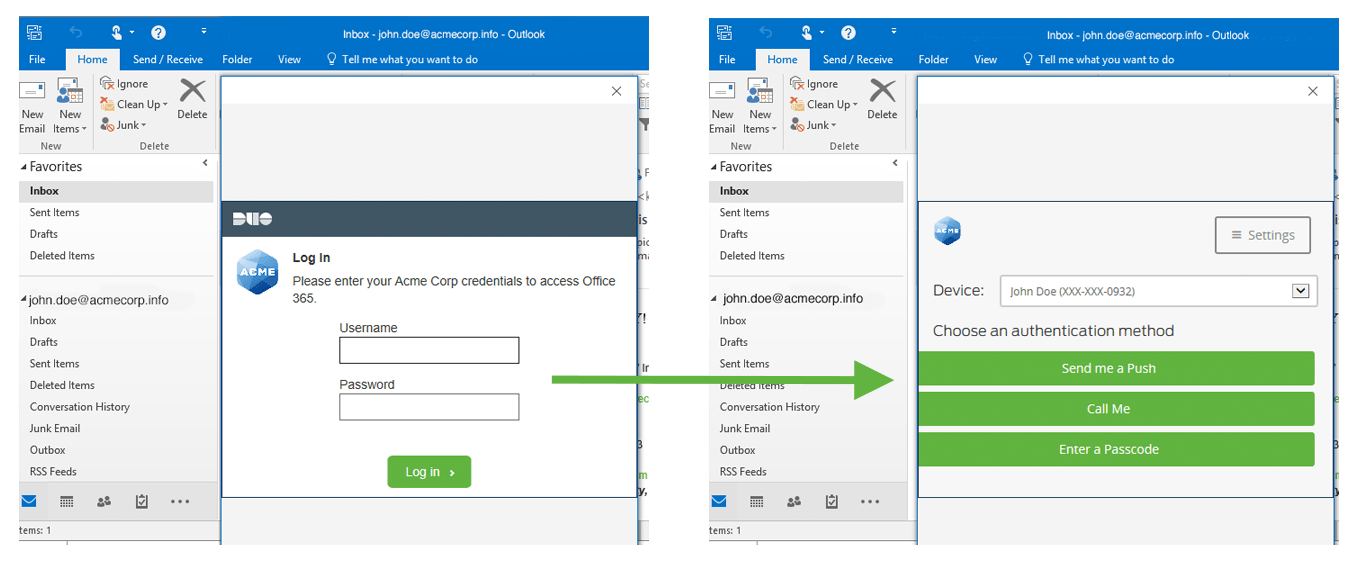
For additional information please see the "Road map for multi-factor authentication in Office desktop applications" section in this blog post from Microsoft: Multi-Factor Authentication for Office 365 and the previous blog entries Office 2013 updated authentication enabling Multi-Factor Authentication and SAML identity providers and Office 2013 modern authentication public preview announced.
Duo does not natively support the creation of application specific passwords for bypassing multi-factor authentication for Office 365 tenants.
Additional Troubleshooting
Need more help? Try searching our Duo Access Gateway Knowledge Base articles or Community discussions. For further assistance, contact Support.